Lumyeye - AI app for blind and low-vision users
Lumyeye Pro exclusive — available on iPhone 16+, from $16.99/month. See pricing →

← Video library

LED flash by voice

"Lumyeye, turn on the flash." Voice control of the iPhone LED to light a dark area, help with reading or find an object. Simple on/off; advanced modes go through iOS Control Center.

Sample transcript and context

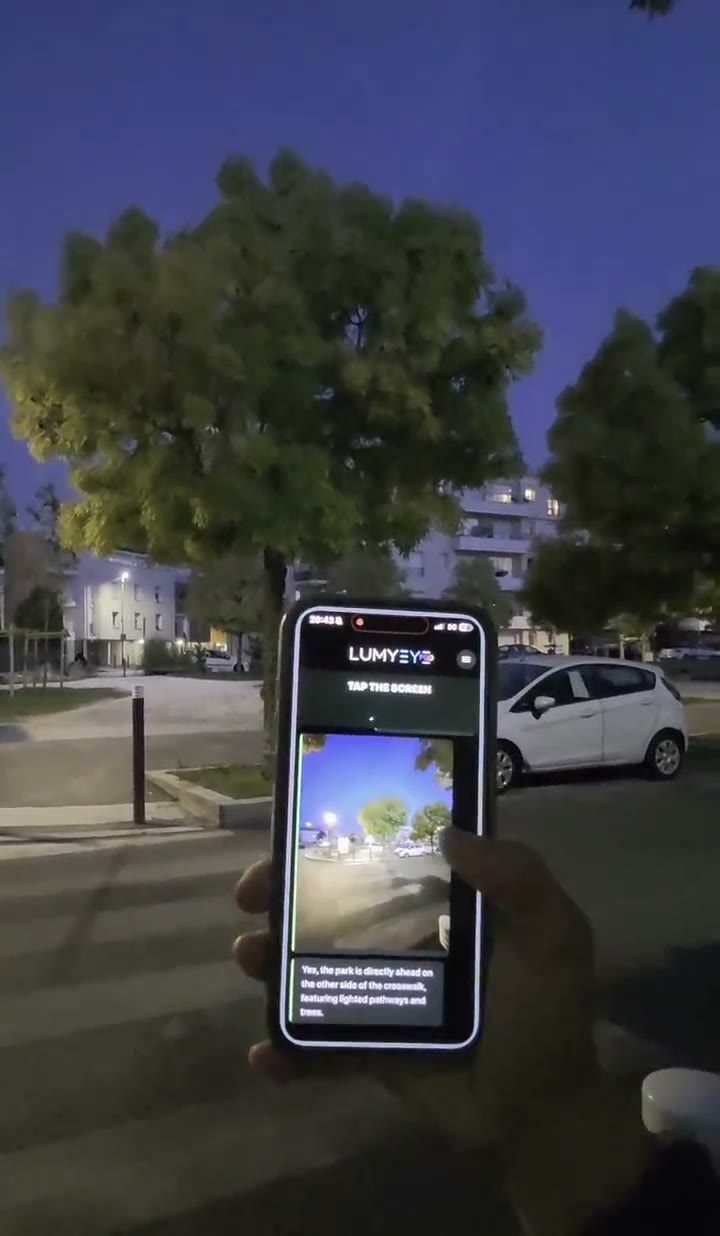
Mr. Wagner, 75, has advanced glaucoma with severe night blindness. Going down to the cellar or walking home in the evening had become an ordeal. With his iPhone in his chest pocket, he voice-controls the flashlight: "Lumyeye, turn on the flash", the LED switches on immediately; "Lumyeye, turn off the flash", it switches off.

The voice flash command is a simple on-demand function: turn on, turn off. The user decides. For variable-intensity modes, custom blinking or SOS, go through the native iOS Control Center (long press on the flashlight icon).

Use cases: finding a bottle in the cellar, reading a medication label at bedtime without waking your partner, signaling your position to a relative on the street. Lumyeye Pro does not trigger the LED automatically in the background and does not send an autonomy alert; ask for the battery level by voice before extended outings.

Compatible with iPhone mounting accessories (armband, lanyard, belt clip) to free your hands. Also available in Lumyeye Classic; the Pro version responds faster thanks to the natural warm iOS 16+ voice. iPhone 16+, $16.99/month.

Frequently asked questions

LED flash by voice — your questions.

How long does the flash last in continuous flashlight mode?

The iPhone LED draws a lot of power in continuous mode. On iPhone 16, expect about 2 hours of continuous full-power flashlight on a fresh battery. Remember to turn it off when no longer needed ("Lumyeye, turn off the flash").

Does Lumyeye Pro turn the flash on automatically?

No. You ask for on and off by voice. Lumyeye Pro does not turn on the LED in the background, does not anticipate lighting needs and does not offer an automatic flash power-saver.

Can I adjust intensity or blink the flash with Lumyeye Pro?

Lumyeye Pro controls the LED on and off. For variable-intensity modes, blinking or SOS, use the native iOS Control Center (long press on the flashlight icon). Lumyeye Pro can read these screens aloud.

Does the flash fire for photos taken with Lumyeye Pro?

The iPhone camera handles flash usage in photo mode based on lighting conditions (Auto, On, Off). Lumyeye Pro respects the chosen camera setting; this is not a dedicated Lumyeye feature.

How do I trigger flash on/off by voice?

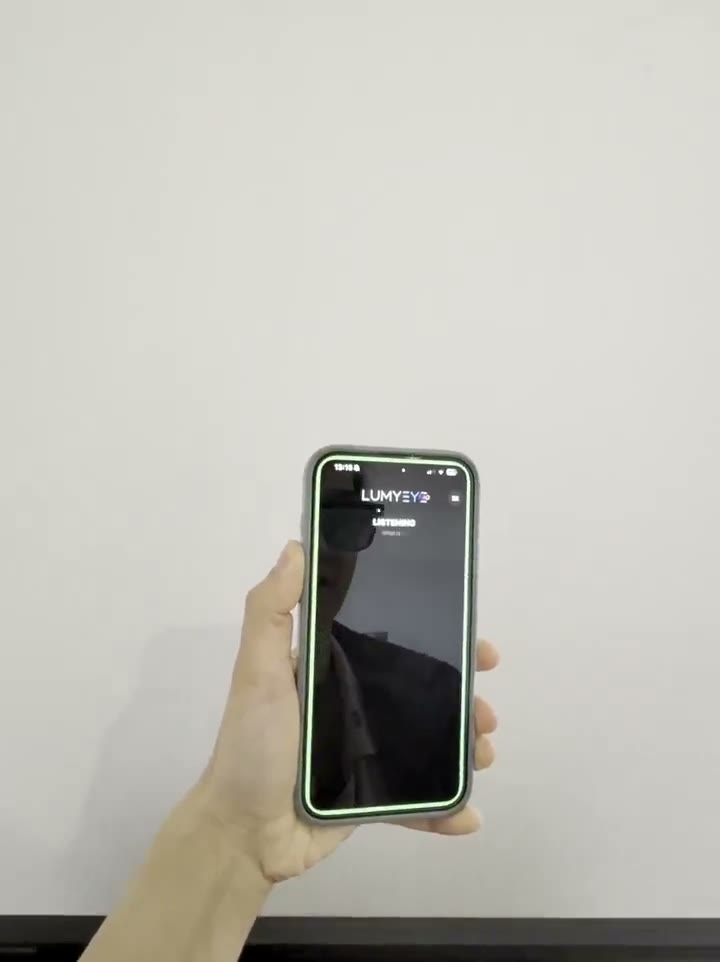
Tap or double-tap anywhere on the screen in Lumyeye Pro to activate listening, then say "Turn on the flash" or "Turn off the flash".

Testimonial

Mr. Wagner, 75, Strasbourg.

"My glaucoma plus night blindness made every evening errand a struggle. With Lumyeye Pro, I just say 'turn on the flash' and the LED lights my way. No fumbling for buttons in the dark. I go back to my evening club meetings on my own."

— Mr. Wagner, 75, Strasbourg, advanced glaucoma + night blindness

Practical tips

Use the LED flashlight smartly with Lumyeye Pro.

  1. Turn off the flash when you're done. Continuous mode drains the battery fast. Always say "Lumyeye, turn off the flash" when no longer needed.
  2. Use a chest pocket or lanyard. Place the iPhone so the LED faces forward. Frees your hands for the cane or dog harness.
  3. Combine with battery check before going out. Ask for the battery level before extended evening outings.
  4. For SOS or blinking, use iOS Control Center. Lumyeye Pro handles on/off; advanced flash modes are in the native iOS Control Center.
  5. Don't replace the white cane or guide dog with the flashlight. The flashlight is an extra light source. It does not replace mobility aids; it complements them.

Try Lumyeye Pro.

Lumyeye Pro on iPhone 16+, from $16.99/month. Free trial, no credit card.

Download Lumyeye See all demos

Direct download

Try Lumyeye Pro in 1 tap.

40 free queries · no credit card · no account required.

Download on the App Store →