Lumyeye Pro
Lumyeye Pro, available on iOS 17.6+ and Android 9+, from $16.99/month. See pricing →

Measure obstacle distance with LiDAR

Point a compatible iPhone Pro at an obstacle. Distance mode speaks its distance immediately. Beep mode announces the distance every two seconds as you move, with faster beeps below 1.5 meters, down to 10 centimeters.

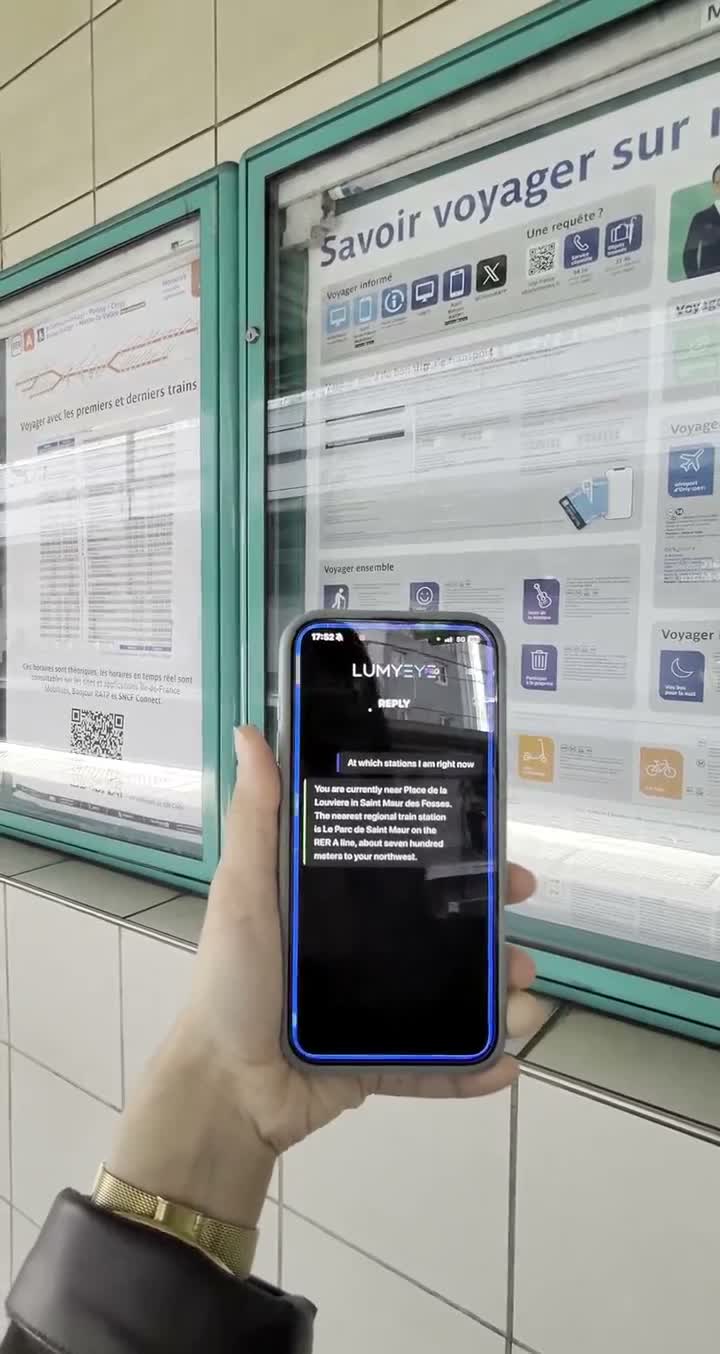
Recording in French; explanation in English below.

How does Lumyeye Pro use LiDAR to measure an obstacle?

Mode 1, Distance mode. Say "distance mode" and Lumyeye Pro uses the LiDAR sensor to give you the distance to the obstacle in view immediately, aloud.

Mode 2, Beep mode. Activate "beep mode" and Lumyeye Pro calculates and speaks the distance every two seconds as you move. When the obstacle in view is closer than 1.5 meters, beeps begin. Their rhythm becomes faster as you approach, down to 10 centimeters. Double tap the screen to stop the mode.

Compatible hardware. Distance measurement uses the physical LiDAR sensor on a compatible iPhone Pro. Keep the rear sensor facing the obstacle you want to measure.

Mobility limits. LiDAR measures an obstacle in the camera’s view. It may miss hazards at ground level or to the sides, so continue using your white cane, guide dog or other mobility practices.
Frequently asked questions

Hardware, beeps, safety, your questions.

Can all iPhones use Lumyeye Pro LiDAR?

No. Only iPhone Pro and Pro Max (iPhone 12 Pro and later) include the LiDAR sensor. On a standard iPhone, Lumyeye Pro announces that the measurement is unavailable.

Does LiDAR work in the dark?

Yes. The LiDAR sensor uses infrared light and can measure distance in a dark room or at night.

When do the approach beeps start?

In Beep mode, Lumyeye Pro speaks the distance every two seconds as you move. Beeps start below 1.5 meters and get faster as you approach the obstacle in view, down to 10 centimeters.

How do I stop Beep mode?

Double tap the iPhone screen to stop Beep mode and return to other requests.

Does LiDAR replace a white cane or guide dog?

No. LiDAR measures an obstacle in front of the rear camera. It does not detect everything at ground level or to the sides. Keep using your usual mobility aid.

Practical tips

Master Lumyeye Pro LiDAR.

  1. Hold the iPhone facing the obstacle, at chest height. Point the rear LiDAR sensor at what you want to measure.
  2. Choose the mode for the situation. Say "distance mode" for an immediate spoken measurement. Activate Beep mode when moving toward an obstacle and listen for the distance updates every two seconds and the beeps below 1.5 meters.
  3. Combine LiDAR with visual description. LiDAR measures distance; use a separate visual description feature when you need information about the object itself.
  4. Get familiar with the rhythm in a known environment first. Listen as the beeps begin below 1.5 meters and speed up while you approach, down to 10 centimeters.
  5. Stop the beep mode before other requests. Stop Beep mode before making another request.

Try Lumyeye Pro.

Lumyeye Pro on iOS 17.6+ (LiDAR required: iPhone 12 Pro and later), from $16.99/month. Free trial, no credit card.

Download Lumyeye ProSee all demos